Integrating Pet Feeder with Home Assistant and HomeKit
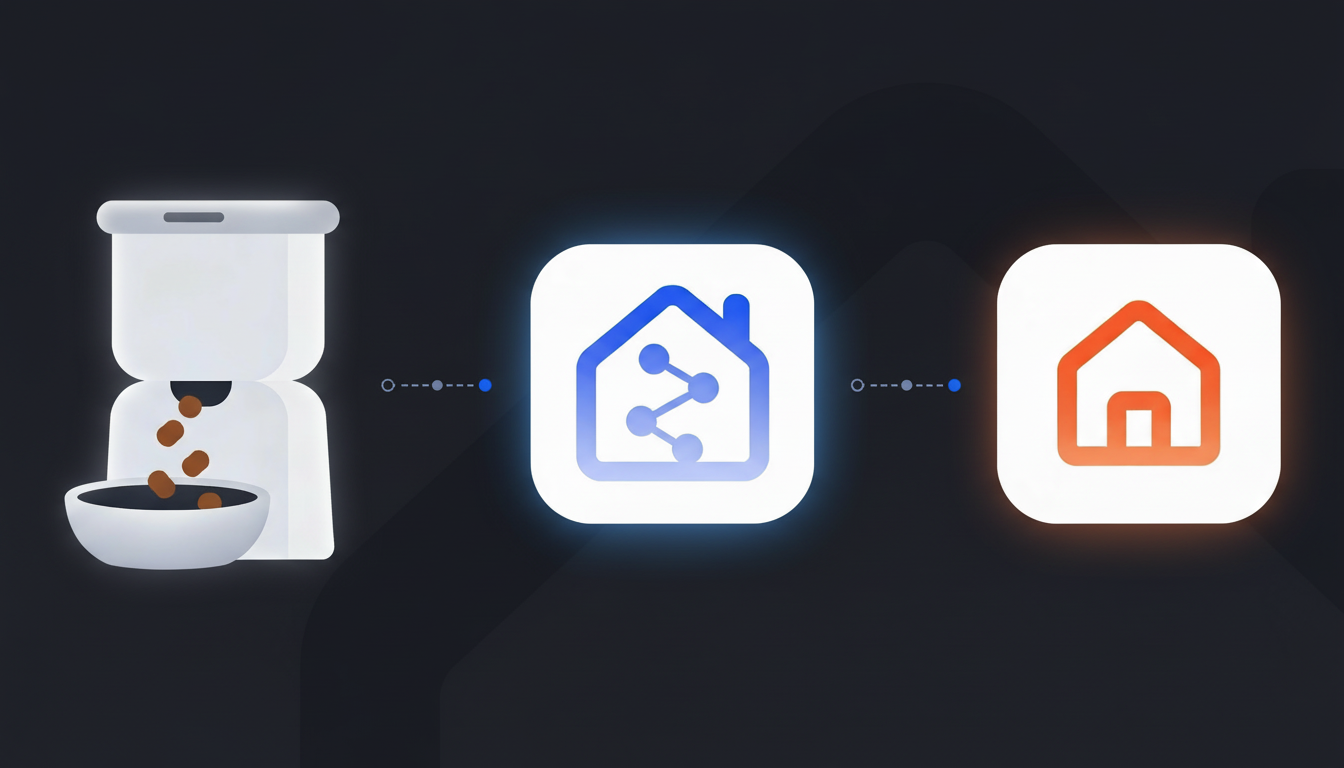
Integrating Geeni 6L Smart Pet Feeder with Home Assistant and HomeKit
This guide documents my successful setup of the Geeni 6L Smart Pet Feeder with Camera to work completely offline through Home Assistant, eliminating dependency on cloud services while maintaining full functionality including portion control. After integrating with Home Assistant, I exposed the feeder to Apple HomeKit for seamless control through the iOS Home app and Siri.
What will be Achieve
- Offline operation: No more reliance on Tuya cloud servers
- Local control: Fast, responsive feeding through Home Assistant
- HomeKit integration: Control via Siri and iOS Home app
- Portion control: Set exact feeding amounts through automations
- Privacy: All data stays local on then network
Requirements
- Geeni 6L Smart Pet Feeder with Camera (Tuya-based)
- Home Assistant instance (I run mine in Docker on a ZimaBoard)
- HACS (Home Assistant Community Store) installed
- iOS device with Home app (for HomeKit setup)
Important Note About Camera
The built-in camera feed does not work offline with Tuya Local integration. This is a known limitation - Tuya’s camera streaming is cloud-dependent and cannot be accessed locally without complex RTSP workarounds that aren’t available for this feeder model. However, all feeding functions work perfectly offline. As a workaround, the regular Tuya app can still be used to see the camera feed locally without having to go through the Tuya cloud servers.
Part 1: Installing HACS (if not already installed)
If you already have HACS installed, skip to Part 2.
Step 1: Enable Advanced Mode
- Navigate to Settings → System
- Click your profile icon in the bottom-left corner
- Toggle on Advanced Mode
Step 2: Install HACS
- Visit the HACS website at hacs.xyz
- Go to the “Usage” section, then “Download HACS”
- Click the download link - it will redirect to your Home Assistant instance
- You’ll see a window about a missing repository - this is expected
- Click “Add” to install the “Get HACS” add-on
- Click “Install” then “Start” (don’t enable auto-update or startup toggles)
- Check the log tab to verify successful download
Step 3: Restart Home Assistant
- Go to Settings → System → Restart Home Assistant
- Wait for the system to fully reboot
Step 4: Configure HACS Integration
- After reboot, go to Settings → Devices & Services
- Click ”+ Add Integration” in the bottom right
- Search for and select “HACS”
- You’ll be redirected to GitHub - authorize HACS with your GitHub account
- Enter the authorization code when prompted
- Grant permission for HACS to check for updates
- Once complete, HACS will appear in your sidebar
Part 2: Installing Tuya Local Integration
Tuya Local is superior to LocalTuya because it automatically discovers your local key without requiring manual extraction through developer portals.
Step 1: Add Tuya Local Repository to HACS
- Open HACS from your sidebar
- Click the three dots menu in the top right
- Select “Custom repositories”
- Add this repository URL:
https://github.com/make-all/tuya-local - Select repository type: “Integration”
- Click “Add”
Step 2: Install Tuya Local
- In HACS, use the search bar to find “Tuya Local”
- Select it from the results
- Click “Download” in the bottom right
- Restart Home Assistant after installation completes
Step 3: Add Your Geeni Feeder
- Ensure the feeder is powered on and connected to the Wi-Fi network (set up initially through the Tuya app)
- Go to Settings → Devices & Services
- Click ”+ Add Integration”
- Search for “Tuya Local”
- Enter the feeder’s local IP address (find this in the router’s connected devices list)
- Tuya Local will automatically detect the device type and retrieve the local key
- Select the device model from the list (it should recognize it as a pet feeder)
- Click “Submit”
Step 4: Configure Feeder Entities
After successful setup, Tuya Local creates several entities for the feeder:
- Number entity (e.g.,
number.video_pet_feeder_log_offline_feed): Controls portion size - Switch entities: Various control functions
- Sensor entities: Status information, food level, etc.
The number entity is the key control - it sets how many portions to dispense.
Part 3: Testing the Integration
Manual Feeding Test
- Go to Settings → Devices & Services → Tuya Local
- Find the pet feeder device and click on it
- Locate the number entity (e.g.,
number.video_pet_feeder_log_offline_feed) - Set the value to
1(for 1 portion) - The feeder should immediately dispense one portion
Create a Simple Feeding Script (Optional)
For easier testing and future use:
- Go to Settings → Automations & Scenes → Scripts
- Click ”+ Add Script” → “Create new script”
- Add this configuration:
1
2
3
4
5
6
7
8
9
alias: Feed Pet - 1 Portion
sequence:
  - service: number.set_value
    target:
      entity_id: number.video_pet_feeder_log_offline_feed
    data:
      value: "1"
description: "Dispense 1 portion of food"
icon: mdi:food-drumstick
- Save and test by running the script
Part 4: Exposing to HomeKit
Now that the feeder works offline with Home Assistant, let’s make it accessible through Apple HomeKit.
Step 1: Install HomeKit Bridge Integration
- Go to Settings → Devices & Services
- Click ”+ Add Integration”
- Search for “HomeKit” or “Apple”
- Select “HomeKit Bridge”
- Click “Submit”
Step 2: Configure Domain Selection
you Home Assistant will ask which types of devices to expose to HomeKit. For the feeder:
- Select “Number” domain to expose the portion control
- Or select “All” and filter later
- Click “Submit”
Step 3: Set Partition (Optional)
If prompted, assign the HomeKit Bridge to a partition/area. This is optional for organization.
Step 4: Get the Pairing Code
- After completing setup, click on Notifications (bell icon in sidebar)
- There will be a HomeKit pairing QR code and 8-digit code
- Keep this screen open or note the code
Step 5: Pair with iOS Home App
- On an iPhone or iPad, open the Home app
- Tap ”+” → “Add Accessory”
- Scan the QR code from Home Assistant, or tap “Enter Code Manually” and input the 8-digit code
- Tap “Add Anyway” when warned about uncertified accessory
- Select the room for the feeder (e.g., “Kitchen”)
- Name the accessory (e.g., “Pet Feeder”)
- Tap “Done”
Step 6: Configure Entity Filters (Recommended)
To avoid exposing unnecessary entities to HomeKit:
- In Home Assistant, go to Settings → Devices & Services
- Find the HomeKit Bridge integration
- Click “Configure”
- Select “Include entities” mode
- Choose only the entities wanted in HomeKit:
- The number entity for portion control
- Any relevant switches or sensors
- Click “Submit”
- Restart the HomeKit Bridge if needed
Alternatively, filters can be configured in configuration.yaml:
1
2
3
4
5
6
7
homekit:
  - filter:
      include_entities:
        - number.video_pet_feeder_log_offline_feed
    entity_config:
      number.video_pet_feeder_log_offline_feed:
        name: Pet Feeder Portions
Step 7: Test HomeKit Control
- Open the Home app on the iOS device
- Find the pet feeder
- Adjust the number value to set portions (typically 1-5)
- The feeder should respond immediately
Siri Voice Control:
- “Hey Siri, set Pet Feeder Portions to 2”
- “Hey Siri, what is Pet Feeder Portions set to?”
Note: Siri’s interaction with number entities can be awkward. For better voice control, consider creating scripts or automations in Home Assistant that you expose as switches to HomeKit.
Part 5: Advanced Configuration
Create Preset Feeding Scripts
Instead of manually setting portions each time, create scripts for common feeding scenarios:
Breakfast (2 portions):
1
2
3
4
5
6
7
8
9
alias: Feed Pet - Breakfast
sequence:
  - service: number.set_value
    target:
      entity_id: number.video_pet_feeder_log_offline_feed
    data:
      value: "2"
description: "Morning feeding - 2 portions"
icon: mdi:coffee
Snack (1 portion):
1
2
3
4
5
6
7
8
9
alias: Feed Pet - Snack
sequence:
  - service: number.set_value
    target:
      entity_id: number.video_pet_feeder_log_offline_feed
    data:
      value: "1"
description: "Snack time - 1 portion"
icon: mdi:food
Expose Scripts to HomeKit as Switches
For better Siri integration:
- Create input_boolean helpers for each feeding preset:
- Go to Settings → Devices & Services → Helpers
- Click ”+ Create Helper” → “Toggle”
- Name it (e.g., “Feed Breakfast”)
- Save
- Create automations that trigger the scripts when the input_boolean is turned on:
1
2
3
4
5
6
7
8
9
10
alias: Trigger Breakfast Feed
trigger:
  - platform: state
    entity_id: input_boolean.feed_breakfast
    to: "on"
action:
  - service: script.feed_pet_breakfast
  - service: input_boolean.turn_off
    target:
      entity_id: input_boolean.feed_breakfast
- Expose these input_boolean entities to HomeKit
- Now we can say: “Hey Siri, turn on Feed Breakfast”
Scheduled Feeding Automation
Create time-based automations for automatic feeding:
1
2
3
4
5
6
7
8
9
10
11
12
alias: Auto Feed - Morning
trigger:
  - platform: time
    at: "07:30:00"
condition: []
action:
  - service: number.set_value
    target:
      entity_id: number.video_pet_feeder_log_offline_feed
    data:
      value: "2"
mode: single
Feed Logging (Optional)
Track feeding history by creating a logging automation:
1
2
3
4
5
6
7
8
9
alias: Log Pet Feeding
trigger:
  - platform: state
    entity_id: number.video_pet_feeder_log_offline_feed
action:
  - service: notify.persistent_notification
    data:
      message: "Fed {{ states('number.video_pet_feeder_log_offline_feed') }} portions at {{ now().strftime('%H:%M') }}"
      title: "Pet Fed"
Benefits of This Setup
Reliability
- No dependency on Tuya cloud servers
- Feeding schedule continues even if internet is down
- Faster response times with local control
Privacy
- All data stays on your local network
- No video feeds sent to cloud servers
- Full control over when and how device communicates
Integration
- Works seamlessly with other Home Assistant automations
- Can trigger feeding based on presence detection, time, or other sensors
- iOS Home app provides unified control of all smart home devices
Voice Control
- Siri integration for hands-free feeding
- Can create custom voice commands through shortcuts
- Family members can feed pets through shared Home app access
Conclusion
By migrating the Geeni 6L Smart Pet Feeder to Home Assistant via Tuya Local and then exposing it to HomeKit, I have created a robust, private, and flexible pet feeding system. The setup eliminates cloud dependency while providing modern conveniences like voice control and automated scheduling.
For my toy poodle Enzo, this setup has been rock-solid reliable, with instant response times and zero cloud-related outages. Highly recommended for anyone running Home Assistant!
Additional Resources
- Tuya Local GitHub: https://github.com/make-all/tuya-local
- HACS Installation: https://www.hacs.xyz/
- Home Assistant HomeKit Integration: https://www.home-assistant.io/integrations/homekit/
- Geeni 6L Smart Pet Feeder with Camera: https://www.amazon.ca/Geeni-Pre-Recorded-Messages-Automatic-Dispenser/dp/B0D42BTND7