Taking control of IKEA Smart Devices with Home Assistant
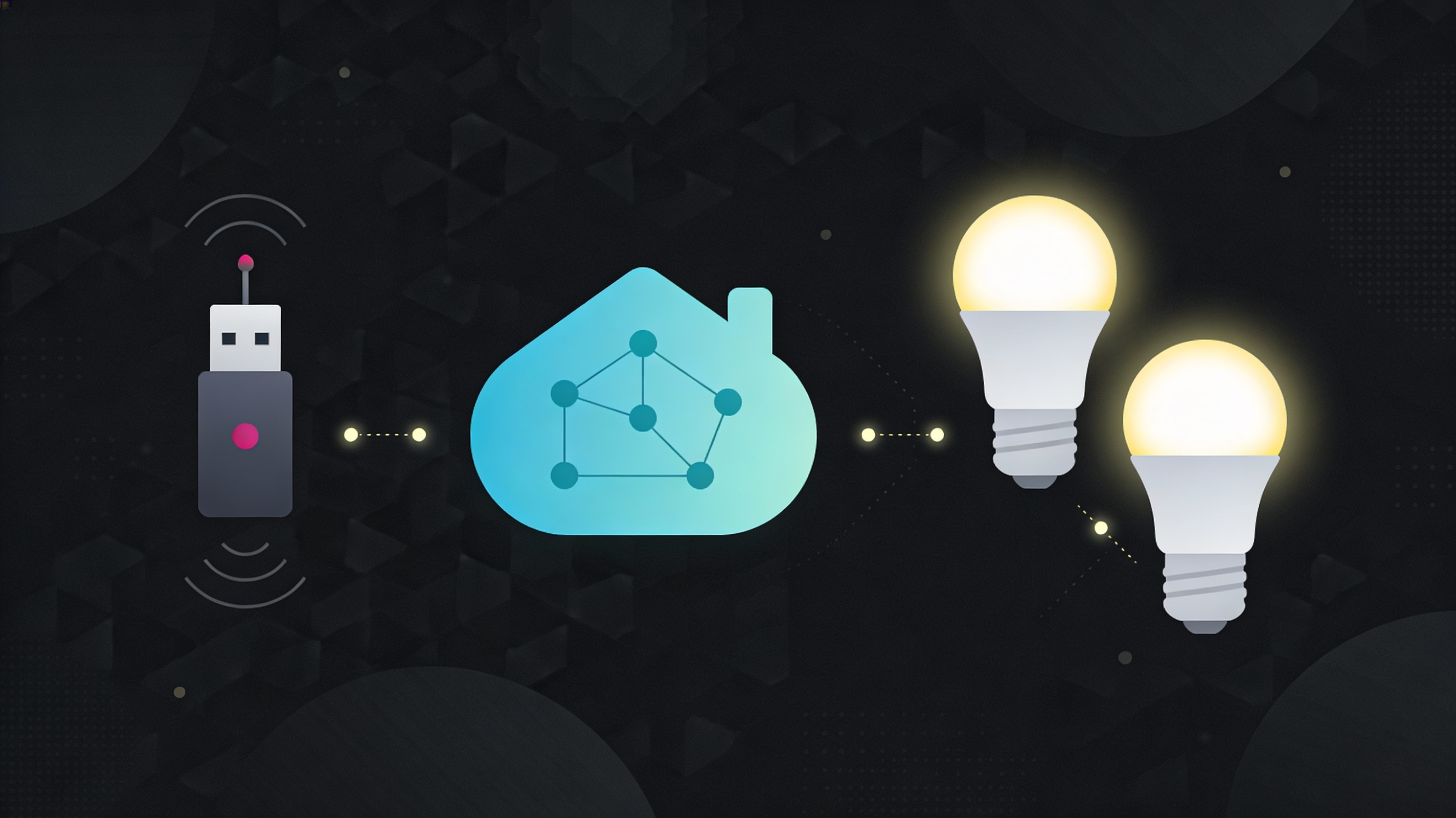
IKEA TRÅDFRI on my own Zigbee coordinator
This document describes how I moved my IKEA TRÅDFRI bulbs and remote from the IKEA bridge to my own Zigbee coordinator (SONOFF ZigBee 3.0 USB Dongle Plus), so everything is now handled directly by my Zigbee stack and Home Assistant instead of the IKEA app.
Why remove the IKEA bridge?
- Avoid a second hub and simplify the Zigbee network
- Manage all Zigbee devices from a single coordinator
- No dependency on the IKEA app or cloud for pairing and control
Requirements
- A running Zigbee coordinator (e.g. SONOFF ZigBee 3.0 USB Dongle Plus) integrated with Home Assistant (ZHA)
- An IKEA TRÅDFRI bulb (Zigbee-based)
- An IKEA TRÅDFRI remote
Step 1 – Reset the IKEA devices
Both the bulbs and the switch need to be reset so they forget the IKEA bridge and are ready to join the new coordinator.
- Reset the bulb
- Toggle the main power to the bulb 6 times (on/off) in a row
- The bulb will blink to confirm it is in pairing mode
- Reset the remote
- Press the small pairing button on the inside of the remote 4 times within 5 seconds
- The LED on the remote will flash to indicate it was reset and is ready to join a new network
Step 2 – Pair bulb and switch with ZHA
With both devices reset, they can be joined directly to the Zigbee network managed by ZHA in Home Assistant.
- In Home Assistant go to Settings → Devices & services → Zigbee Home Automation (ZHA) → Configure → Add device to enable permit join.
- Power up the IKEA bulb, it should already be in pairing mode and will flash briefly, then appear as a new light device in ZHA.
- To pair the IKEA remote, keep ZHA in add-device mode and press the small pairing button until the LED starts flashing.
- Wait for ZHA to complete the interview, the remote will show up as a separate device that sends button events which can later be used in automations to control the lights or any other devices in Home Assistant.
Step 3 – Create a Zigbee group for the bulbs
To turn multiple bulbs on or off with a single Zigbee command (and keep them visually in sync), create a Zigbee group in ZHA and add the bulbs to it.
- In Home Assistant, go to Settings → Devices & services → Zigbee Home Automation (ZHA) → Configure → Groups
- Click Create group, give it a name (for example
Living Room Lamps), and select the bulbs you want to control together - Save the group. When there is at least two devices in it, ZHA exposes a single group entity that sends one Zigbee broadcast so all bulbs turn on or off at the same time
Step 4 – Control the Zigbee group with the remote (automation)
Instead of binding the remote directly to a single bulb, the remote can trigger a Home Assistant automation that calls services on the Zigbee group entity. This way, one remote controls all bulbs in the group and you can customize behavior per button.
This example listens to a specific IKEA remote and toggles the Zigbee group when the main power button is pressed.
1
2
3
4
5
6
7
8
9
10
11
12
13
14
15
16
alias: IKEA switch – Living Room
description: Control Living Room lights with IKEA remote (short press)
mode: single

trigger:
  - platform: device
    domain: zha
    device_id: x1x2x3x4x5xx6x7x8x9x0 # Replace with IKEA remote device_id
    type: remote_button_short_press
    subtype: turn_on

action:
  - service: light.toggle
    target:
      entity_id:
        - light.living_room_group  # Replace with a light or Zigbee group
Step 5 – Remove the IKEA bridge and app
Once the lamp and switch are visible and working through the new coordinator, the IKEA bridge is no longer needed.
- Unplug the IKEA TRÅDFRI gateway from power and network
- Remove or sign out of the IKEA Smart app if it is no longer used
- Use only your Zigbee coordinator and Home Assistant for future pairing and control
Conclusion
Moving my IKEA bulbs and remote to my own Zigbee coordinator and ZHA gives me a cleaner setup, a single place to manage devices, and full control over how the remote behaves through automations and groups.
Using a light or Zigbee group for my living room lamps plus a simple ZHA device-trigger automation keeps the YAML small while still leaving room to add scenes, dimming, or extra buttons later.
No cloud or internet required, everything is local and private.
Additional resources
- ZHA integration docs: https://www.home-assistant.io/integrations/zha/