Securing my homelab services with Caddy Reverse Proxy
This weekend, I tackled a project I’d been meaning to do for a while: centralizing my home services behind a single reverse proxy. Instead of dealing with certificate errors and mixed protocols, I now have all my services running securely over HTTPS, accessible both locally on my LAN and remotely through Tailscale and using the exact same hostnames and ports.
The Problem
Before this setup, accessing my services was inconsistent:
- Multiple services running on different ports (homeserver:3000, homeserver:3001, etc.)
- Certificate errors on services like UniFi that didn’t have proper SSL
- No consistent encryption across all services
- Awkward remote access without proper HTTPS
- Manual certificate management for each service
The Solution: Caddy
I chose Caddy as my reverse proxy for several reasons:
- Automatic HTTPS with Let’s Encrypt (and support for custom CAs)
- Simple, readable configuration
- Built-in support for reverse proxying
- Works seamlessly with Docker
- Easy integration with Tailscale
- Minimal overhead while providing maximum security
What is a Reverse Proxy?
Before diving into the setup, here’s a simple diagram showing how Caddy works as a reverse proxy:
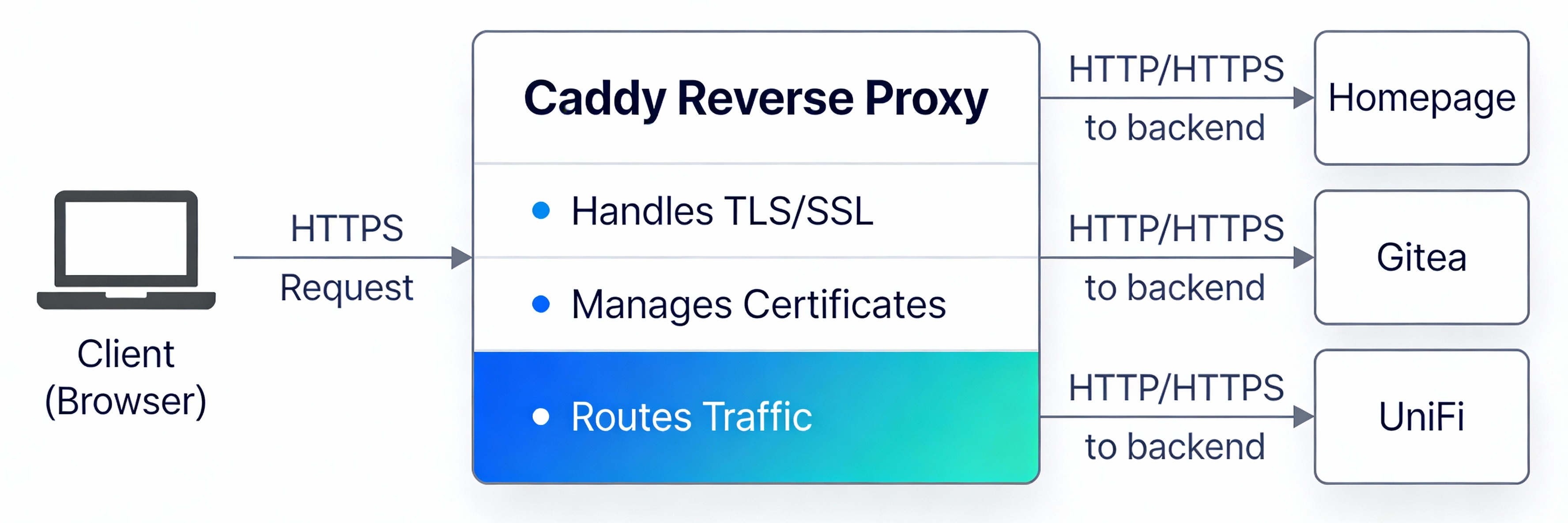
Caddy sits in front of your services, accepts encrypted HTTPS connections from clients, and forwards the traffic to the appropriate backend service. This means your services don’t need to handle SSL/TLS themselves. Caddy does all the heavy lifting.
My Setup
Services Behind Caddy
I successfully configured three key services to sit behind the Caddy reverse proxy:
- Homepage - My dashboard service at
homeserver:3000 - Gitea - My self-hosted Git service at
homeserver:3001 - UniFi Controller - Network management Web Site at
homeserver:3002
All services maintain their original ports but now communicate through Caddy with proper HTTPS encryption. (Except UniFi Controller wich use to be a direct IP.)
Why Keep the Same Ports?
The critical decision here was keeping the same port numbers. I wanted to use exactly the same hostname whether I’m on Tailscale or directly on my LAN.
- On my LAN:
homeserveris configured as a hostname in my UniFi router’s DNS - On Tailscale:
homeserveris configured in Tailscale’s MagicDNS
This means whether I’m at home or remote, I access my services the same way:
https://homeserver:3000for Homepagehttps://homeserver:3001for Giteahttps://homeserver:3002for UniFi
No mental overhead, no different bookmarks, no confusion. By keeping the ports the same and having Caddy handle the HTTPS on those exact ports, the experience is seamless across networks.
As a bonus, I can now access UniFi Controller even when I am remote through Tailscale. Something that was not possible before.
Network Architecture
The new setup provides access through two paths:
- Local LAN Access: All services are accessible via HTTPS at their original addresses with proper certificates
- Remote Access via Tailscale: Secure remote access to all services through the Tailscale network with end-to-end encryption
Benefits
No More Certificate Errors
The biggest win was eliminating the certificate warnings. Previously, services like UniFi would throw cert errors constantly. I had already added my custom CA certificate and trusted it, but browsers would still complain. Now with Caddy handling the certificates properly, everything just works.
Consistent Security
All services now run over HTTPS, whether accessed locally or remotely. The traffic is encrypted, and I have a single point of certificate management.
Unified Experience
The same URL works everywhere:
- At home on my LAN?
https://homeserver:3000 - Remote on Tailscale?
https://homeserver:3000 - On my iPhone?
https://homeserver:3000
No need to remember different addresses or ports for different scenarios.
Secure Remote Access
Thanks to Tailscale integration, I can access all these services remotely using the same addresses and ports. The traffic is encrypted end-to-end through the Tailscale network.
Simplified Management
Having a single entry point for all services makes it much easier to:
- Manage SSL certificates globally
- Monitor traffic patterns
- Add new services
- Troubleshoot connectivity issues
Technical Details
Setting Up the Docker Network
First, create a shared Docker network that all your services will use to communicate:
1
docker network create homelab
This network needs to be created only once. All your docker-compose files will reference this network, allowing Caddy to reach the backend services by their container names.
Docker Compose Setup
Since each service runs independently, here are three separate docker-compose files:
Caddy Reverse Proxy - docker-compose.caddy.yml:
1
2
3
4
5
6
7
8
9
10
11
12
13
14
15
16
17
18
19
20
21
22
23
services:
  caddy:
    image: caddy:latest
    container_name: caddy
    ports:
      - "3000:443"
      - "3001:444"
      - "3002:445"
    volumes:
      - ./Caddyfile:/etc/caddy/Caddyfile
      - caddy_data:/data
      - caddy_config:/config
    networks:
      - homelab
    restart: unless-stopped

volumes:
  caddy_data:
  caddy_config:

networks:
  homelab:
    external: true
Homepage Service - docker-compose.homepage.yml:
1
2
3
4
5
6
7
8
9
10
11
12
13
services:
  homepage:
    image: ghcr.io/gethomepage/homepage:latest
    container_name: homepage
    expose:
      - "3000"
    networks:
      - homelab
    restart: unless-stopped

networks:
  homelab:
    external: true
Gitea Service - docker-compose.gitea.yml:
1
2
3
4
5
6
7
8
9
10
11
12
13
services:
  gitea:
    image: gitea/gitea:latest
    container_name: gitea
    expose:
      - "3000"
    networks:
      - homelab
    restart: unless-stopped

networks:
  homelab:
    external: true
Key points:
- Each service is isolated in its own compose file
- Caddy is the only container exposing ports to the host (3000, 3001, 3002)
- All services reference the external
homelabnetwork created earlier - Backend services only expose ports internally to the Docker network
- Caddy references services by their container names (homepage, gitea or IP)
Caddy Configuration
Here’s the actual Caddyfile configuration I’m using:
1
2
3
4
5
6
7
8
9
10
11
12
13
14
15
16
17
18
19
20
21
# Homepage
homeserver {
    tls internal
    reverse_proxy homepage:3000
}

# Gitea
:444 {
    tls internal
    reverse_proxy gitea:3000
}

# UniFi Admin Site
:445 {
    tls internal
    reverse_proxy https://10.0.0.1:443 {
        transport http {
            tls_insecure_skip_verify
        }
    }
}
Configuration breakdown:
- Homepage block: Listens on
https://homeserver:3000and forwards to thehomepageDocker container on port 3000 - Gitea block: Listens on
https://homeserver:3001and forwards to thegiteaDocker container on port 3000 (Gitea’s internal port) - UniFi block: Listens on
https://homeserver:3002and forwards to theunifiadmin site, skipping certificate verification since UniFi has its own self-signed cert - tls internal: Uses Caddy’s internal CA to generate certificates (perfect for local networks)
The configuration is clean and minimal.
Trusting Caddy’s Root Certificate
Since Caddy uses an internal CA to generate certificates, you need to trust that CA on your devices to avoid certificate warnings.
The root certificate is automatically generated by Caddy and stored in the caddy_data volume. To find and import it:
Access it directly from the volume (if you have filesystem access to your Docker volumes ex.: Portainer, Docker Desktop)
Import on different devices:
- Linux: Copy the certificate to
/usr/local/share/ca-certificates/and runupdate-ca-certificates - macOS: Open Keychain Access and import the certificate as a trusted root CA
- Windows: Use the Certificate Manager or PowerShell to import the certificate
- iOS/Android: Email the certificate to yourself and open it, then trust it in settings
- Linux: Copy the certificate to
Once imported, your devices will trust all certificates issued by Caddy’s internal CA, eliminating certificate warnings entirely.
Next Steps
Now that the foundation is in place, I’m planning to:
- Migrate additional services behind Caddy (Jellyfin, Home Assistant, etc.)
- Set up better monitoring and logging through Caddy
- Explore Caddy’s metrics and observability features
- Document the configuration in my Git repository for easy replication
Conclusion
This weekend project significantly improved my homelab experience. What started as a way to eliminate certificate errors on my UniFi controller turned into a complete security upgrade for all my self-hosted services. By keeping the same port structure and ensuring hostname consistency across both LAN and Tailscale, the transition was completely seamless.
The combination of Caddy and Tailscale provides a secure, clean, and professional setup that works beautifully both at home and on the go.
If you’re running multiple services in your homelab and haven’t set up a reverse proxy yet, I highly recommend giving Caddy a try. The setup is straightforward, and the quality-of-life improvements are substantial.
Additional resources
- Reverse proxy quick-start - Caddy Documentation: https://caddyserver.com/docs/quick-starts/reverse-proxy